Backup Center
Manage database backup intervals, download snapshots, and set recovery configurations.
Overview
The Backup & Disaster Recovery Center provides a centralized solution for protecting your CoconutDB tenant against accidental data loss, corruption, or system failures.
The platform automatically creates scheduled database backups and securely stores them in your configured cloud storage providers. In the event of data loss, administrators can restore the entire tenant to a previous point in time or recover it from a manually uploaded backup file.
The Backup Center is designed to provide business continuity with automated backups, point-in-time recovery, disaster recovery, and complete backup auditing.
Automated Backup Process
CoconutDB automatically performs scheduled backups of your tenant database and uploads them to the configured cloud storage providers.
The backup strategy consists of multiple layers:
Nightly Full Database Dumps
A complete database backup is generated every day. These backups contain the entire database schema and all tenant data, allowing a full restoration if required.
Continuous WAL (Write-Ahead Log) Backups
Between nightly backups, CoconutDB continuously archives Write-Ahead Log (WAL) segments. Instead of creating a complete backup after every change, WAL files record every database transaction, including Inserts, Updates, Deletes, and Schema changes.
This enables Point-in-Time Recovery (PITR), allowing the database to be restored to an exact moment within the WAL retention period.
Monthly Archive Backups
At scheduled intervals, CoconutDB creates long-term archive backups for compliance and disaster recovery. These archives are intended for long-term retention and can be restored whenever required.
Backup Dashboard
The Backup Dashboard provides a real-time overview of the backup infrastructure.
It displays key metrics such as:
- Total backups stored
- Nightly database dumps
- Available WAL segments
- Monthly archive backups
- Total cloud storage utilization
These metrics allow administrators to quickly verify the health and status of the backup system.
B2 Catalog & Backup History
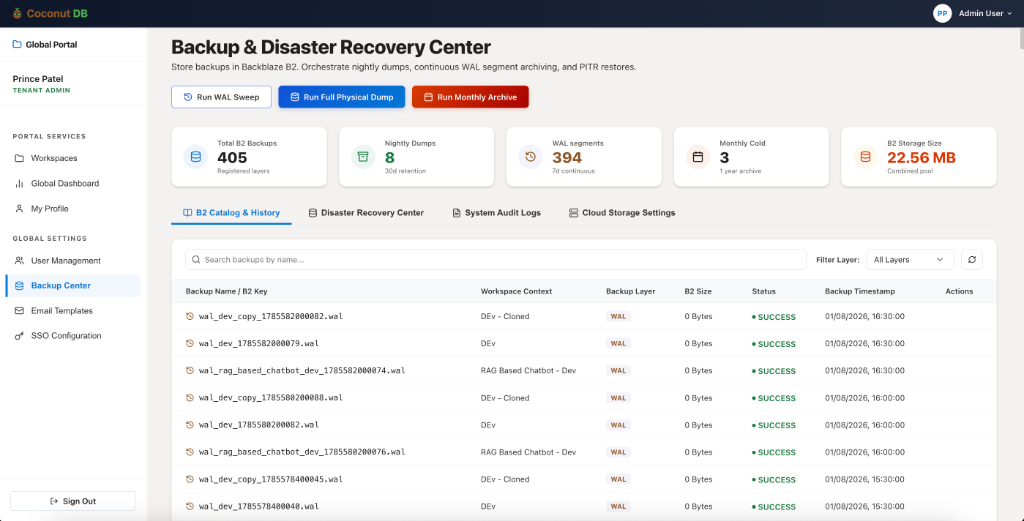
The B2 Catalog & History page provides a complete inventory of all generated backups.
Each backup record includes:
- Backup file name
- Workspace or tenant context
- Backup type (Nightly Dump, WAL, Archive)
- Backup size
- Upload status
- Backup timestamp
Administrators can search and filter backups to quickly locate specific backup files. This serves as the historical record of every backup stored in cloud storage.
Disaster Recovery Center
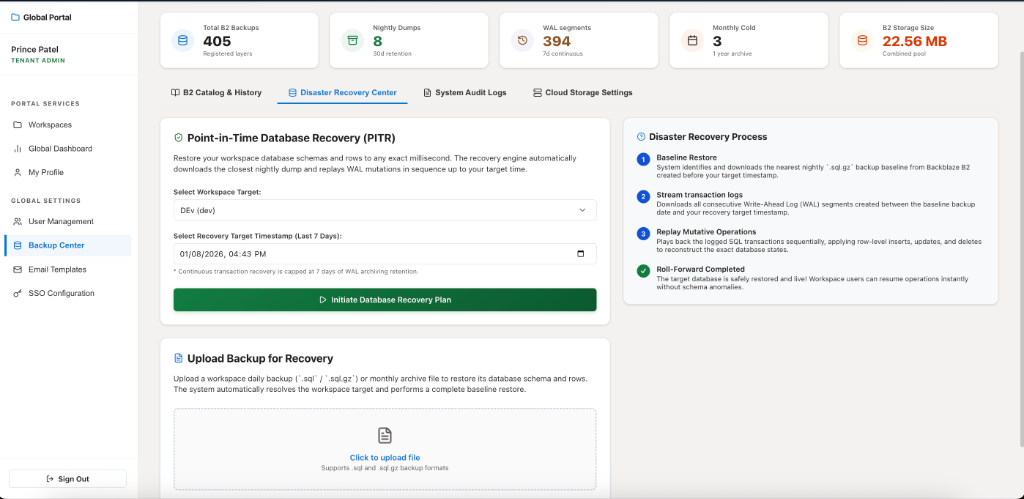
The Disaster Recovery Center enables administrators to restore the tenant after accidental deletion, data corruption, or system failures.
CoconutDB supports two recovery methods:
1. Point-in-Time Recovery (PITR)
Point-in-Time Recovery restores the database to an exact moment in time. The administrator simply selects the target workspace or tenant and the recovery timestamp.
Once initiated, CoconutDB automatically performs the recovery process by locating the nearest nightly full backup, downloading it from cloud storage, retrieving WAL logs generated after that backup, replaying each transaction sequentially, and bringing the database online in the exact state it existed.
This recovery method is ideal for situations such as accidental record deletion, incorrect data updates, failed deployments, data corruption, and user mistakes.
2. Restore from Uploaded Backup
Administrators can also restore the tenant using an existing backup file. If a backup has been downloaded from cloud storage, it can be uploaded directly through the Backup Center (.sql and .sql.gz formats).
After uploading the file, CoconutDB automatically restores the database schema and tenant data contained in the backup. This option is particularly useful when migrating environments or recovering from backups stored outside the platform.
System Audit Logs
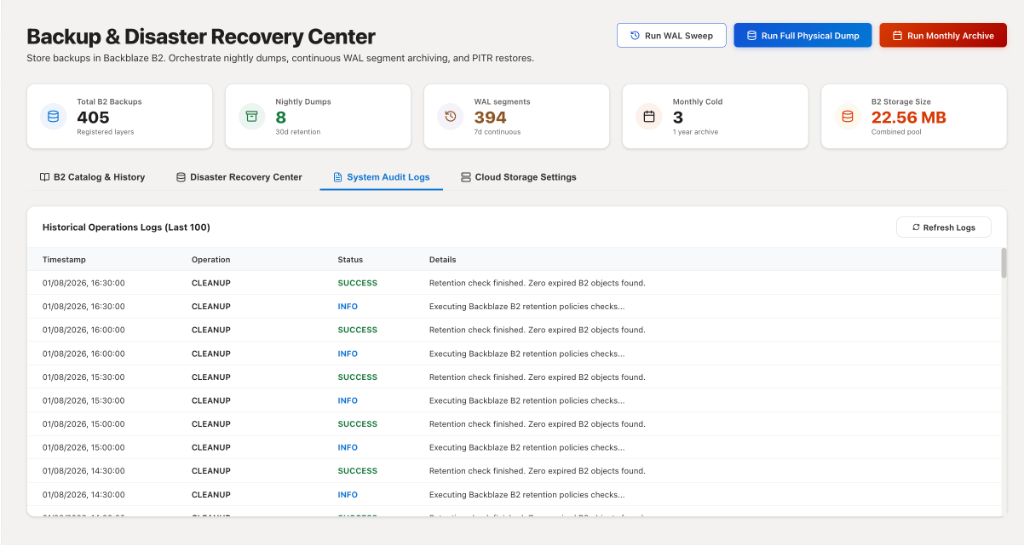
Every backup-related operation performed by CoconutDB is recorded in the System Audit Logs. These logs provide complete visibility into backup and maintenance activities.
Examples include scheduled backup execution, WAL archiving, backup uploads, cleanup operations, retention policy execution, recovery operations, storage synchronization, and backup validation.
Each log entry includes a timestamp, operation name, status (Success, Information, Warning, Failed), and a detailed execution message.
Cloud Storage Settings
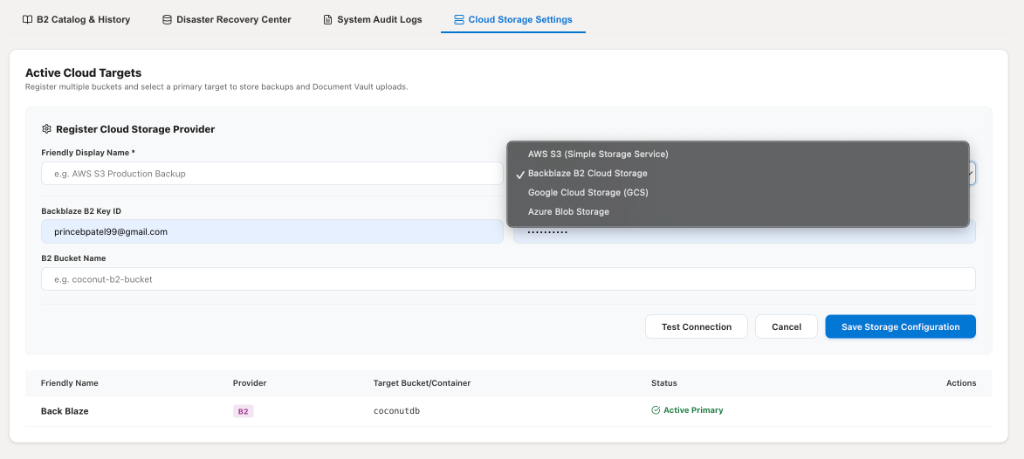
The Cloud Storage Settings page is used to configure the external storage locations where CoconutDB stores backup files.
Supported cloud storage providers include Amazon S3, Google Cloud Storage (GCS), Microsoft Azure Blob Storage, and Backblaze B2 Cloud Storage.
Administrators simply provide the required storage credentials and bucket/container information to register a cloud storage target. Before saving the configuration, the Test Connection option can be used to verify that CoconutDB can successfully connect to the storage provider.
Multiple Cloud Storage Providers
CoconutDB supports configuring multiple cloud storage providers simultaneously (e.g., storing backups in Amazon S3, Azure Blob Storage, and Backblaze B2 at the same time to improve redundancy and disaster resilience).
Although multiple storage targets can be registered, one provider is designated as the Primary Storage. The Primary Storage serves as the default location used during backup browsing and recovery operations.
However, every generated backup is uploaded to all configured cloud storage providers, ensuring that backup data remains available even if one storage provider becomes unavailable. This multi-cloud replication strategy provides an additional layer of protection against infrastructure failures.
Backup Workflow
The backup lifecycle within CoconutDB follows a simple automated workflow:
- CoconutDB continuously monitors database changes.
- Nightly full database dumps are generated automatically.
- WAL transaction logs are archived continuously throughout the day.
- Monthly archive backups are created for long-term retention.
- Every backup is uploaded to all configured cloud storage providers.
- Backup operations are recorded in the System Audit Logs.
- If recovery is required, administrators can: restore the tenant to a specific point in time using PITR, or upload a backup file to perform a complete database restoration.