Email Templates
Design HTML templates for transaction messages, system signups, and alerts.
Overview
The Global Email Manager allows Tenant Administrators to centrally manage all system-generated email communications within CoconutDB.
From a single location, administrators can:
- Customize the branding and content of system email templates.
- Configure their organization's own SMTP server for sending emails.
- Replace the default CoconutDB sender email with their own business email address.
- Test email templates and SMTP connectivity before deployment.
This ensures that every email sent from the platform matches the organization's branding and email infrastructure.
Email Templates
The Email Templates section allows Tenant Administrators to customize the content and appearance of every system-generated email.
Instead of using fixed email content, CoconutDB provides fully editable templates for common user events such as:
- Registration Verification OTP
- Login Verification OTP
- Password Recovery OTP
- Additional system notifications (as configured)
Each template can be customized to reflect the organization's branding and communication style.
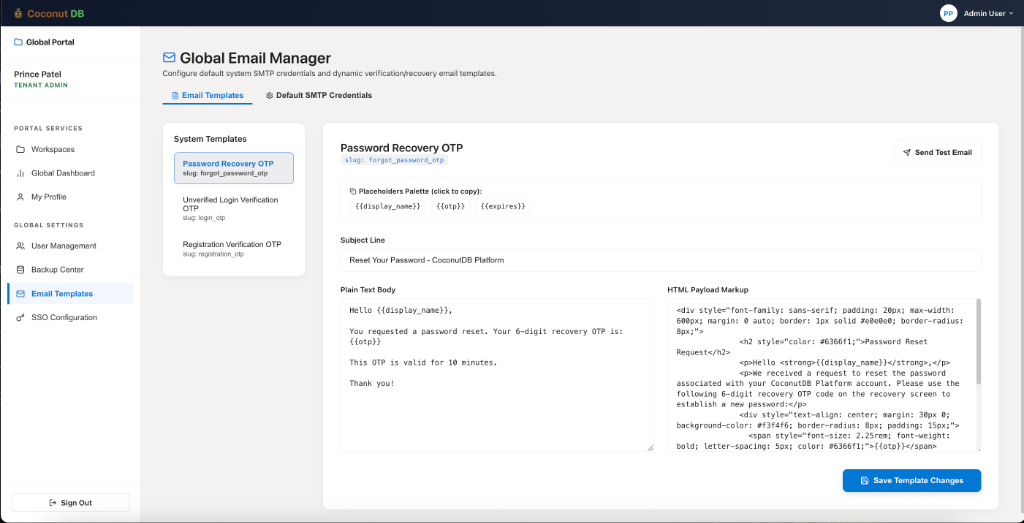
Template Configuration
For every email template, administrators can configure:
Subject Line
Customize the email subject that users receive. Example: `Reset Your Password – CoconutDB Platform`.
Plain Text Content
A plain text version of the email is provided for email clients that do not support HTML formatting. This version can be fully customized while preserving the required dynamic placeholders.
HTML Email Design
Administrators can modify the complete HTML markup to match their corporate branding. Typical customizations include:
- Company logo
- Brand colors
- Typography
- Layout & Buttons
- Footer information
- Contact details & Legal disclaimers
This allows every email sent from CoconutDB to appear as if it originated directly from the organization's own platform.
Dynamic Placeholders
Templates support dynamic placeholders that are automatically replaced when the email is sent. Examples include:
- {{display_name}}
- {{otp}}
- {{expires}}
At runtime, CoconutDB automatically injects the appropriate values before delivering the email.
For example, `Hello {{display_name}}` is delivered as `Hello John Smith`, and `Your verification code is {{otp}}` becomes `Your verification code is 582941`.
Test Email
Before publishing template changes, administrators can send a test email to verify formatting, placeholder rendering, HTML design, branding, and overall appearance across different email clients.
Default SMTP Credentials
By default, CoconutDB can send system emails using its built-in email service.
However, most organizations prefer sending emails from their own corporate domain to maintain brand consistency and improve email deliverability.
The Default SMTP Credentials section allows Tenant Administrators to configure their own email server for all outbound system communications.
Once configured, CoconutDB will send all system-generated emails through the organization's SMTP server instead of the default CoconutDB email service.
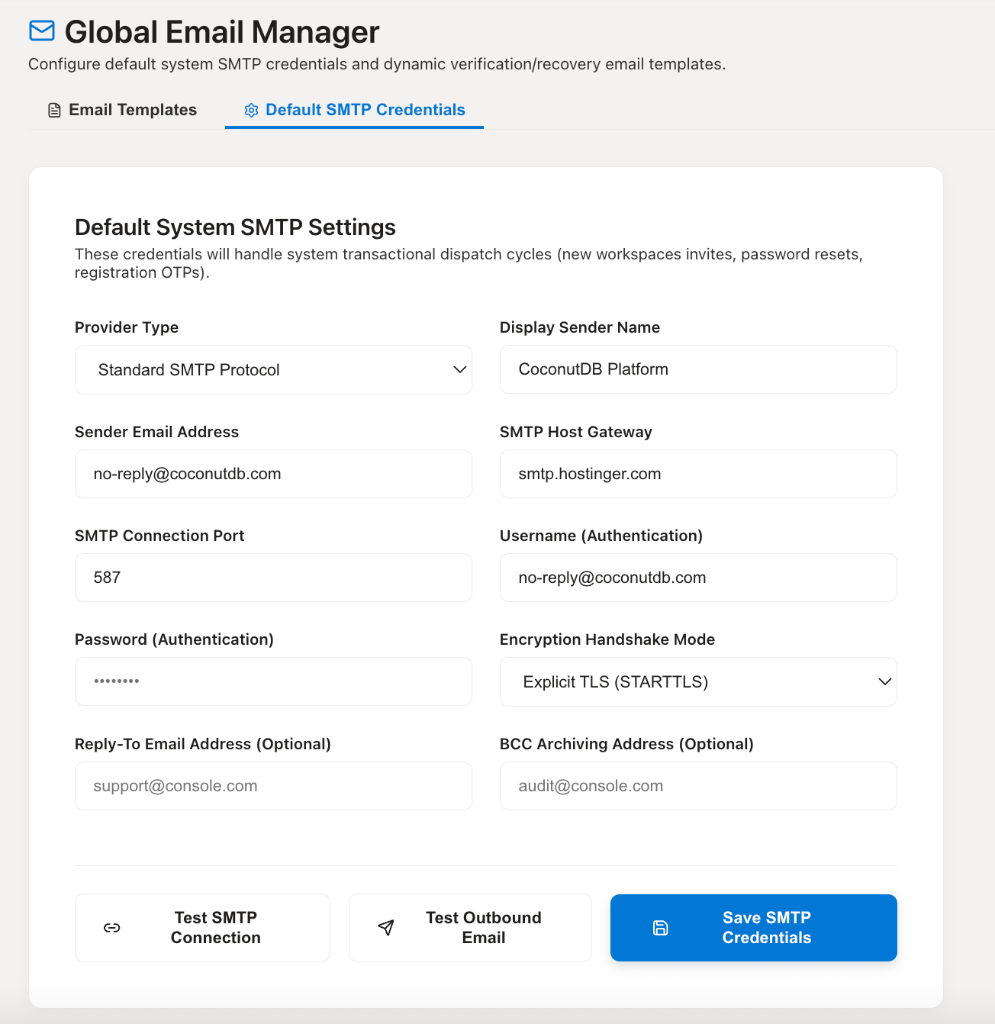
SMTP Configuration
Administrators can configure the following SMTP settings:
- SMTP Provider
- Display Sender Name
- Sender Email Address
- SMTP Host Gateway
- SMTP Connection Port
- Authentication Username
- Authentication Password
- Encryption Handshake Mode (TLS / STARTTLS / SSL)
- Reply-To Address (optional)
- BCC Archive Address (optional)
These settings allow CoconutDB to integrate with virtually any standard SMTP email provider.
Supported Email Providers
Since CoconutDB uses the standard SMTP protocol, it can work with virtually any email service, including:
- Microsoft 365 / Outlook
- Google Workspace (Gmail)
- Amazon SES
- Hostinger Email
- Zoho Mail
- SendGrid
- Mailgun
- SMTP2GO
- Private corporate mail servers
Organizations are free to use whichever provider best fits their infrastructure.
Testing SMTP Configuration
Before saving the SMTP configuration, administrators can validate the settings using built-in testing tools:
- Test SMTP Connection: Verifies that CoconutDB can successfully establish a secure connection with the configured SMTP server. This confirms that the server address is correct, the port is accessible, authentication succeeds, and encryption settings are valid.
- Test Outbound Email: Sends a sample email to ensure that emails are delivered successfully, sender information is correct, email formatting appears as expected, and corporate branding is applied correctly.
How Email Communication Works
Once SMTP credentials have been configured, CoconutDB automatically uses the organization's email server for all system-generated communications.
Typical email scenarios include registration verification, login OTPs, password reset requests, workspace invitations, account verifications, and other platform notifications.
For example, instead of users receiving an email from `no-reply@coconutdb.com`, they can receive emails from the organization's own domain, such as `no-reply@company.com` or `support@company.com`.
This provides a more professional experience and reinforces the organization's brand identity.