Document Vault
Store and manage files securely with automatic encryption, folder structures, and access policies.
Overview
The Document Vault provides a secure, centralized repository for storing and managing files within a workspace. Similar to database tables, you can create multiple Document Vaults to organize documents by project, department, business process, or application.
Each Document Vault maintains its own metadata schema, access permissions, REST APIs, and security policies, allowing organizations to manage documents independently across different business domains.
All uploaded files are securely stored in the configured cloud object storage (Blob Storage), while document metadata is maintained within CoconutDB for fast searching, auditing, and access control.
Why Use Document Vault?
Document Vault enables organizations to securely manage business documents while maintaining complete control over access and document ownership.
Typical use cases include:
- Employee Documents
- Customer Contracts
- Project Files
- Product Images
- Purchase Orders
- Invoices
- Legal Documents
- Compliance Records
- AI Knowledge Base Documents
Creating a Document Vault
Creating a Document Vault follows the same process as creating a database table.
To create a new Document Vault:
- Navigate to Document Vault within your workspace.
- Click Create Document Vault.
- Enter a Display Name and System Name (Slug).
- Configure the Version History Limit.
- Provide an optional description.
- Enable optional security settings.
- Define document metadata columns.
- Click Save Table.
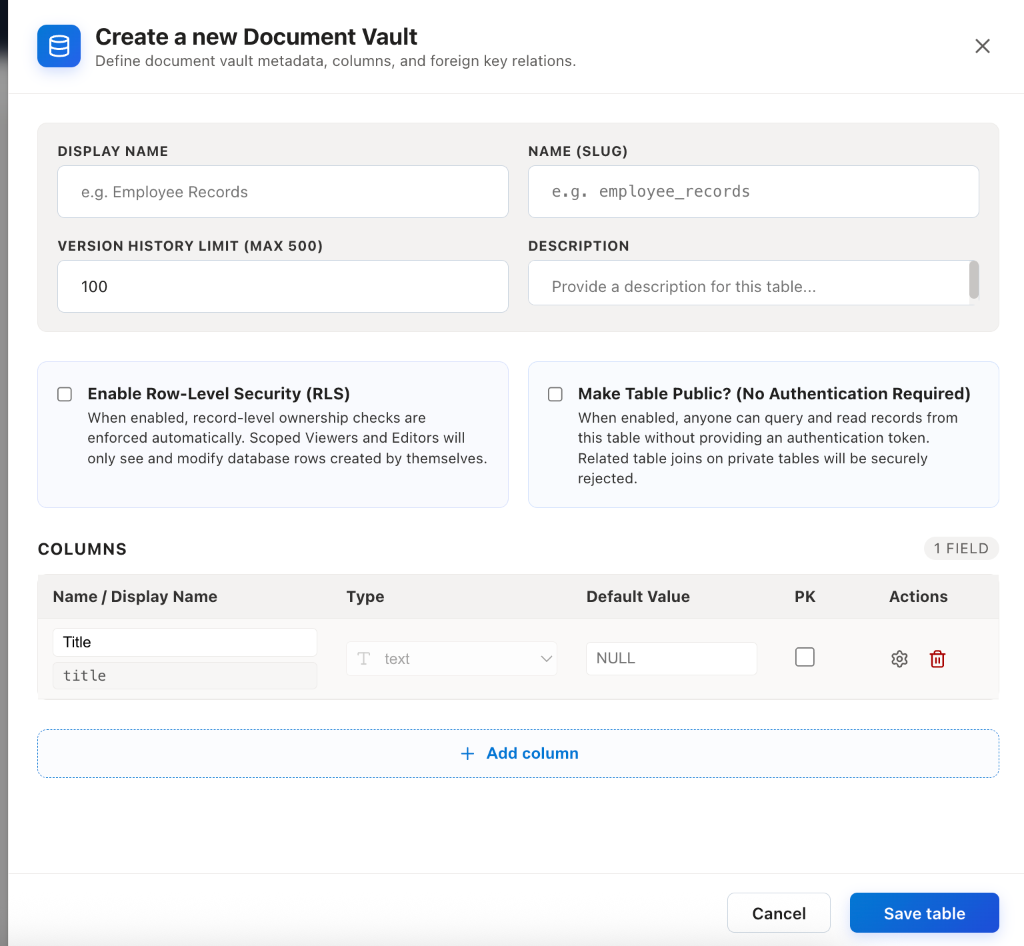
Once created, CoconutDB automatically generates the required storage structure and REST APIs for the vault.
Document Vault Configuration
Each Document Vault includes the following configuration options.
Display Name
The user-friendly name displayed throughout the application.
Example: Employee Documents
Name (Slug)
A unique system identifier used internally for API endpoints and database references.
Example: employee_documents
Version History Limit
Defines the maximum number of historical versions retained for each uploaded document. Older versions are automatically removed once the configured limit is exceeded.
Example: 100 Versions
Description
Provides additional information about the purpose of the Document Vault. This helps administrators understand how the vault is intended to be used.
Security Options
Document Vault supports enterprise-grade security features.
Enable Row-Level Security (RLS)
When enabled, users can access only the documents that they have uploaded or own. Workspace Administrators retain full access to all documents.
This option is recommended for applications where documents should remain private between users.
Typical Use Cases:
- HR Portals
- Expense Claims
- Customer Upload Portals
- Employee Self-Service Applications
Make Table Public
When enabled, documents and metadata can be accessed without requiring user authentication. This option is intended only for publicly accessible content.
Examples include:
- Public Downloads
- Marketing Assets
- Product Catalogs
- Documentation Files
Security Note
For security reasons, joins with private tables are automatically restricted.
Document Metadata
Each Document Vault allows administrators to define custom metadata fields, similar to database table columns.
Metadata can include information such as:
- Document Title
- Category
- Department
- Owner
- Expiry Date
- Status
- Project
- Tags
- Version Number
Metadata makes documents searchable, filterable, and easier to organize.
Blob Storage Integration
Document files are stored separately from your application database.
When a file is uploaded:
- The physical file is uploaded to the cloud Blob Storage configured under Backup Center.
- CoconutDB stores only the document metadata, ownership information, version history, and storage reference within the database.
- Future downloads retrieve the file directly from the configured storage provider.
This architecture improves scalability while keeping large files outside the primary database.
Version History
Each uploaded document supports version tracking.
Whenever a document is replaced or updated:
- A new version is created.
- Previous versions are retained according to the configured Version History Limit.
- Administrators can review historical versions for auditing and recovery purposes.
This ensures important business documents are never accidentally lost.
Document Vault API Reference
This section provides the API specifications for managing dynamic Document Vaults (document-type tables) in CoconutDB.
Global Headers Context
All Document Vault API requests expect the following headers:
| Header | Type | Required | Description |
|---|---|---|---|
| Authorization | String | Yes | Bearer Token: JWT authentication token (Bearer <token>). |
| X-Project-Id | UUID | Yes | Active workspace project identifier establishing table schema context. |
1. Get Documents from Document Vault
Method: POST | Path: /v1/:resource/query
Required Headers: X-HTTP-Method-Override: QUERY
Returns all documents uploaded to the vault. Supports RLS policy filters, relational lookups, sorting, pagination, and metadata field searches.
{
  "from": "contracts",
  "select": [
    { "field": "id" },
    { "field": "filename" },
    { "field": "file_size" },
    { "field": "mime_type" },
    { "field": "vault_category" }
  ],
  "where": {
    "and": [
      { "is_deleted": { "eq": false } },
      { "vault_category": { "eq": "Legal Docs" } }
    ]
  },
  "limit": 10,
  "page": 1
}{
"success": true,
"data": [
{
"id": "019fbb11-7a6c-72df-ba8c-3221ea3a6ba2",
"filename": "terms_of_service.pdf",
"file_size": 184502,
"mime_type": "application/pdf",
"vault_category": "Legal Docs"
}
],
"pagination": {
"total": 1,
"page": 1,
"limit": 10,
"pages": 1
}
}2. Upload Document Attachment
Method: POST | Path: /v1/:resource/upload
Content-Type: application/json
Uploads a new document binary (Base64-encoded) to the vault along with custom metadata fields. Enforces tenant storage quotas (max_file_storage_mb). Enforces maximum file size constraints of 100MB.
{
  "filename": "terms_of_service.pdf",
  "mime_type": "application/pdf",
  "file_data": "JVBERi0xLjQKJdPr6gogMSAwIG9iagogIDw8IC9UeXBlIC9DYXRhbG9nCiAgICAvUGFnZXMgMiAwIFIKICA+PgplbmRvYmo...",
  "vault_category": "Legal Docs",
  "review_status": "Approved"
}{
"success": true,
"data": {
"id": "019fbb11-7a6c-72df-ba8c-3221ea3a6ba2",
"filename": "terms_of_service.pdf",
"mime_type": "application/pdf",
"file_size": 184502,
"vault_category": "Legal Docs",
"review_status": "Approved",
"uploaded_by": "019fa2d5-7723-74ed-a8cc-87afbe30faa7",
"b2_file_id": "4_z85fefa20_f1791_d20260801_m0147",
"version": 1,
"created_at": "2026-08-01T02:00:00.000Z",
"updated_at": "2026-08-01T02:00:00.000Z"
}
}3. Download Document File
Method: GET | Path: /v1/:resource/:id/download
Streams the file binary content to the client. Attaches the Content-Disposition: attachment header to force a browser file save dialog.
Content-Type: application/pdf
Content-Length: 184502
Content-Disposition: attachment; filename="terms_of_service.pdf"
4. Get Blob file
Method: GET | Path: /v1/:resource/:id/blob
Streams the raw file binary payload. Does not include Content-Disposition, allowing inline render/preview inside browser frames or tags (e.g. <iframe src='...'> or <img src='...'>).
Content-Type: application/pdf
Content-Length: 184502
5. Delete Document
Method: DELETE | Path: /v1/:resource/:id
Deletes a document from the vault. By default, soft-deletes the record (setting is_deleted to true). To permanently hard-delete, append ?hard=true to the query parameters (requires Admin role).
{
  "success": true,
  "message": "Record successfully moved to recycle bin."
}
These APIs allow applications, mobile clients, and external systems to manage documents programmatically without additional backend development.
Enterprise Features
Document Vault includes several enterprise capabilities:
- Multiple Document Vaults per Workspace
- Secure Cloud Blob Storage
- Automatic REST APIs
- Custom Metadata Columns
- Row-Level Security (RLS)
- Version History
- Soft Delete & Recovery
- Audit Logging
- Role-Based Access Control
- Public or Private Document Access
Best Practices
For effective document management, consider the following recommendations:
- Create separate Document Vaults for different business domains (e.g., HR, Finance, Legal, Projects).
- Enable Row-Level Security (RLS) for confidential or user-specific documents.
- Configure an appropriate Version History Limit based on retention requirements.
- Store business information as metadata fields to enable efficient searching and filtering.
- Keep public access disabled unless documents are intentionally meant for anonymous users.
- Ensure a reliable Blob Storage provider is configured under Backup Center, as all uploaded files are stored there.