SMTP Email Services
Configure custom SMTP settings for email delivery, validation links, and account updates.
Overview
The SMTP Email Services module allows Workspace Administrators to register and manage outbound email accounts used by CoconutDB for sending emails.
Once an email account is configured, it becomes available throughout the workspace and can be used by REST APIs, automation workflows, user authentication, notifications, and other platform features without requiring additional configuration.
In addition to sending emails, CoconutDB also supports inbound email integration. By configuring an inbound mail server, incoming emails can automatically trigger business workflows and automate email-driven processes.
Why Use SMTP Email Services?
Instead of configuring SMTP credentials separately for every application or workflow, CoconutDB centralizes email management into reusable sender profiles.
A registered email account can be used for:
- User invitations
- Email verification
- Password reset emails
- One-Time Password (OTP) delivery
- Workflow notifications
- Transactional emails
- Custom application emails
- Automated system alerts
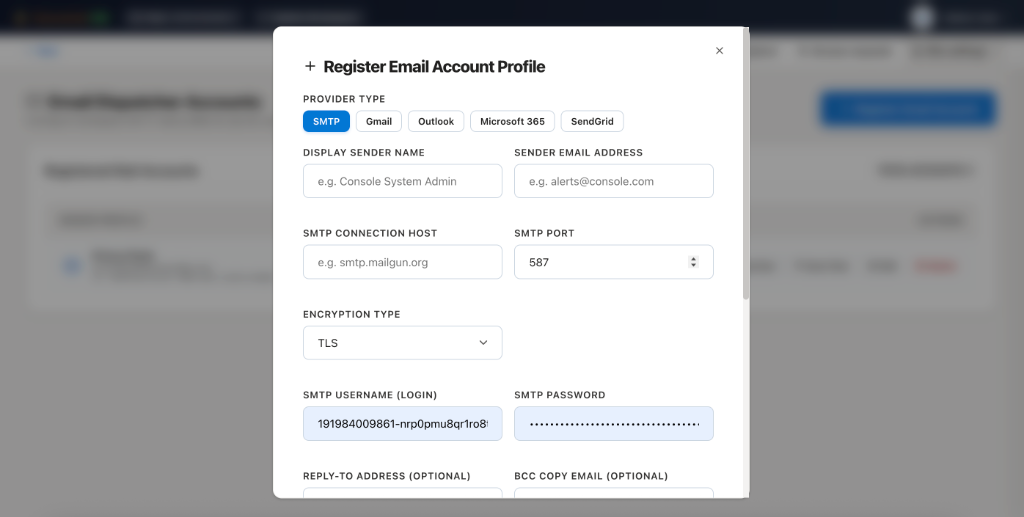
Registering an Email Account
To register a new sender profile:
- Navigate to Site Settings → SMTP Email Services.
- Click Register Email Account.
- Select your email provider.
- Enter the sender information.
- Configure SMTP connection details.
- Save the profile.
The email account is immediately available for use throughout the workspace.
Supported Email Providers
CoconutDB supports multiple outbound email providers, including:
- SMTP
- Gmail
- Outlook
- Microsoft 365
- SendGrid
Additional providers can be configured using standard SMTP settings.
SMTP Configuration
Each sender profile contains the following information:
| Field | Description |
|---|---|
| Display Sender Name | The friendly name displayed as the email sender. |
| Sender Email Address | The email address used to send messages. |
| SMTP Host | The mail server hostname. |
| SMTP Port | Communication port used by the SMTP server. |
| Encryption Type | TLS, SSL, or other supported encryption methods. |
| SMTP Username | Username used for authentication. |
| SMTP Password | Password or application-specific password used to authenticate with the mail server. |
| Reply-To Address (Optional) | Address where recipients should send replies. |
| BCC Copy Address (Optional) | Automatically sends a blind copy of every outgoing email to the specified address. |
Registered Mail Accounts
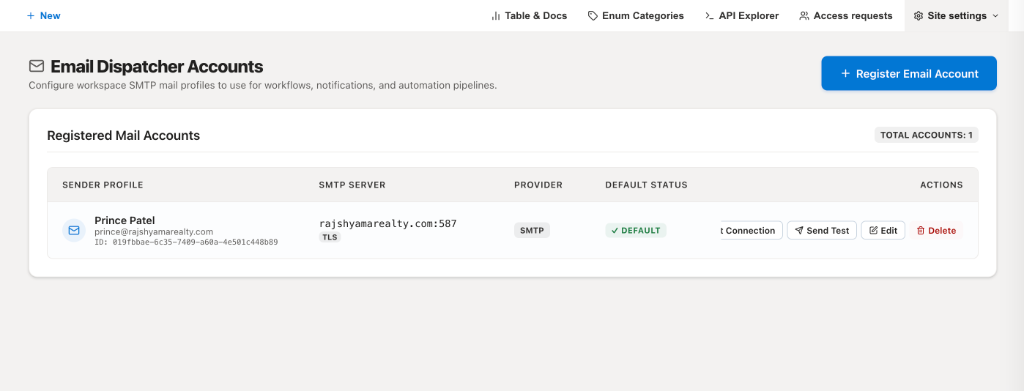
The Registered Mail Accounts page provides a centralized view of all configured sender profiles.
For each account, administrators can view:
- Sender Profile
- Email Address
- SMTP Server
- Provider
- Default Sender Status
Administrators can also:
- Test the connection
- Send a diagnostic email
- Edit configuration
- Delete sender profiles
- Set the default sender account
Test Connection
Before using an email account in production, administrators can verify the SMTP configuration using the Test Connection option.
This validates:
- SMTP authentication
- Network connectivity
- Encryption settings
- Server availability
Testing the connection helps identify configuration issues before emails are sent by applications or workflows.
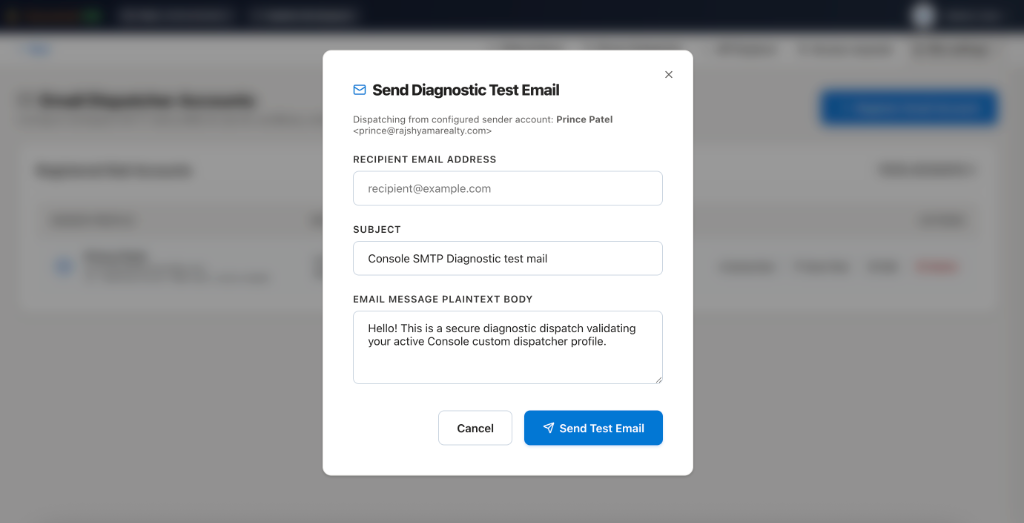
Send Diagnostic Test Email
The Send Test Email feature allows administrators to verify that emails are delivered successfully.
A diagnostic email can be sent to any recipient using the configured sender profile.
This is useful for:
- Verifying SMTP credentials
- Confirming email delivery
- Testing spam filtering
- Validating sender reputation
- Troubleshooting email issues
API Integration
Once an email account has been registered, CoconutDB automatically makes it available to the platform's email APIs.
Applications and workflows can send emails without directly handling SMTP credentials.
Typical API use cases include:
- Sending transactional emails
- User notifications
- Workflow-generated emails
- Custom application messaging
- System-generated alerts
This centralizes email management while improving security by keeping SMTP credentials within the platform.
Inbound Email Processing
In addition to outbound email, CoconutDB supports inbound email integration.
By configuring an inbound mail server (such as IMAP or POP3), incoming emails can be received and processed automatically.
This enables email-driven business processes such as:
- Creating support tickets
- Processing approval requests
- Capturing customer responses
- Parsing structured email content
- Triggering automated workflows
The configuration and workflow capabilities for inbound email processing are covered in detail in the Site Workflows section.