User Management
Manage registered users, global roles, profiles, activity audits, and auto-provisioning rules.
Overview
The User Management module serves as the central administration console for managing all registered users across the CoconutDB tenant.
Every user who registers through the sign-up page, Single Sign-On (SSO), or any supported authentication provider is automatically added to the User Directory.
Tenant Administrators can manage user accounts, monitor user activity, assign global roles, review audit logs, and configure automatic workspace provisioning rules from a single location.
User Directory
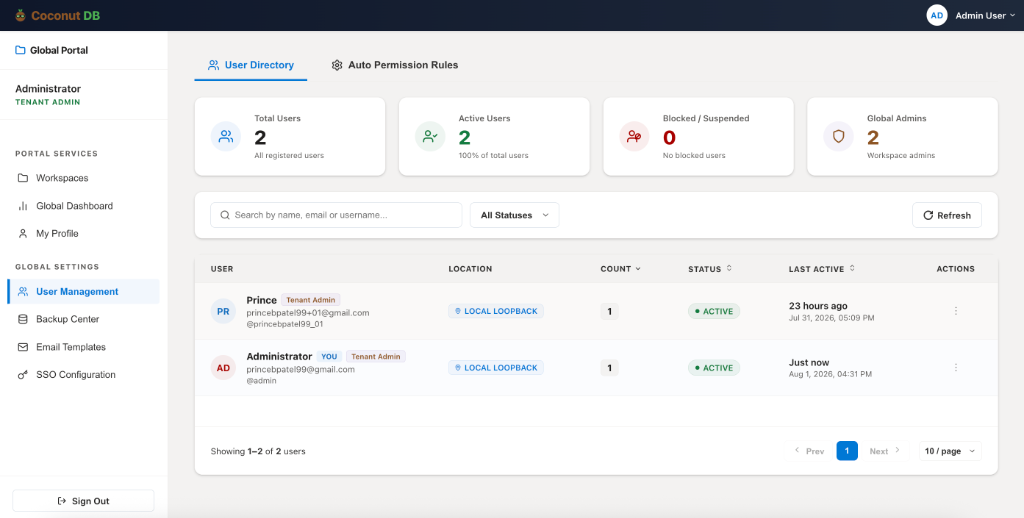
The User Directory displays all registered users along with their account status and activity.
The dashboard provides a quick overview of:
- Total Users – Total number of registered users.
- Active Users – Users whose accounts are currently active.
- Blocked / Suspended Users – Users who have been disabled by an administrator.
- Global Administrators – Users assigned the Tenant Administrator role.
Administrators can search users by name, email address, or username, and filter the list by account status.
User Information
Each user record displays important account information, including:
- Display Name
- Email Address
- Username
- Global Role
- Current Location
- Account Status
- Last Activity
- Number of Assigned Workspaces
This provides administrators with a quick view of user access and recent activity.
Edit User Profile
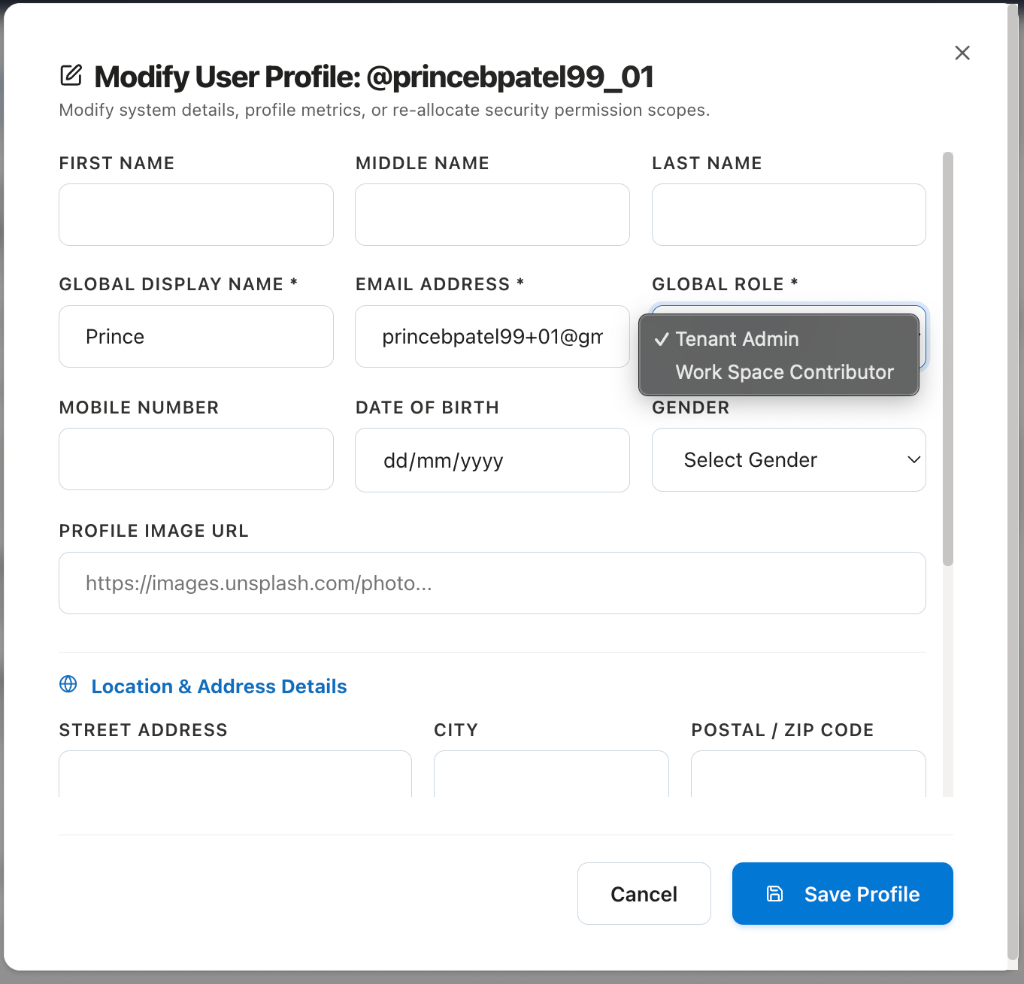
Tenant Administrators can update user profile information at any time.
Editable information includes:
- First, Middle, and Last Name
- Display Name
- Email Address
- Mobile Number
- Date of Birth
- Gender
- Profile Image
- Address Information
- Additional Profile Details
Administrators can also change the user's Global Role, allowing them to promote or demote users as organizational responsibilities change.
Supported global roles include:
- Tenant Administrator
- Workspace Contributor
Changes take effect immediately across the platform.
User Administration
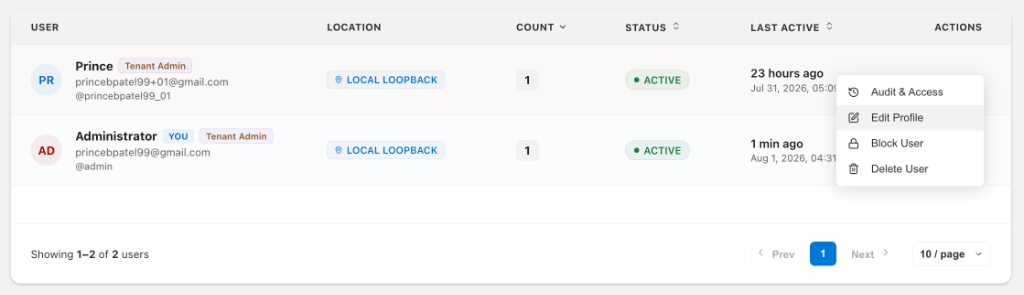
Each user includes an administration menu that provides several management options.
Audit & Access
Opens the user's complete activity profile, including:
- Assigned workspaces
- Workspace roles
- Login history
- Authentication events
- API activity
- Workspace operations
This allows administrators to review how a user is interacting with the platform.
Edit Profile
Modify the user's profile information and update their global permissions.
Block / Unblock User
Administrators can temporarily disable user access without deleting the account.
When a user is blocked:
- They cannot sign in.
- Existing sessions can be invalidated.
- Workspace permissions remain unchanged.
- The account can be reactivated at any time.
This is useful for temporary suspensions or security-related incidents.
Delete User
If a user is no longer required, the account can be permanently removed.
Deleting a user removes their ability to access the platform. This operation should be performed carefully, especially if the user owns workspace resources.
User Audit & Activity Logs
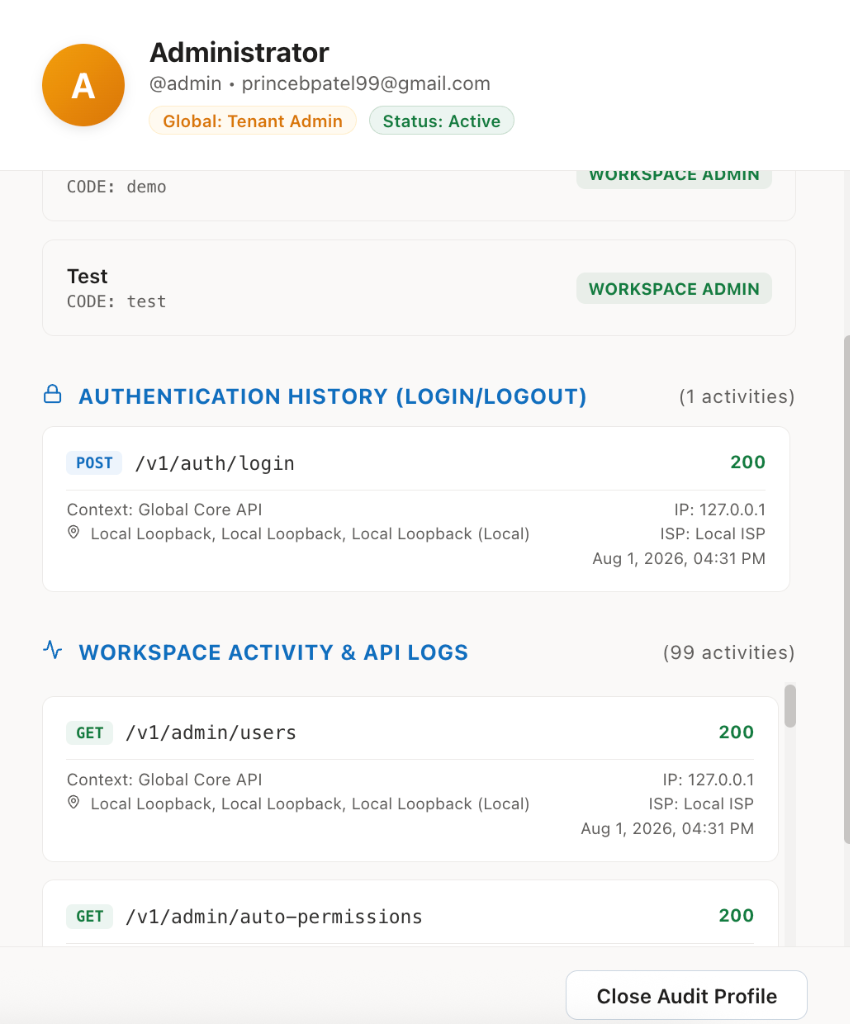
The Audit & Access page provides a detailed history of every user's activity.
Authentication History
Administrators can review all authentication events, including:
- Login requests
- Logout events
- Authentication status
- Timestamp
- IP Address
- Location
- Client information
This helps identify suspicious sign-in attempts and provides a complete authentication audit trail.
Workspace Activity & API Logs
Every API request and workspace operation performed by the user is recorded.
Examples include:
- Table operations
- Document uploads
- Workflow executions
- API requests
- Administrative actions
- Configuration changes
Each log entry includes:
- HTTP Method
- API Endpoint
- Response Status
- Timestamp
- IP Address
- Request Context
These logs provide complete traceability for auditing, troubleshooting, and security investigations.
Auto Permission Rules
The Auto Permission Rules feature automatically provisions workspace access for newly registered users.
Instead of manually adding every new user to individual workspaces, Tenant Administrators can define default provisioning rules.
When a new user registers through Sign-Up, Single Sign-On (SSO), or any supported authentication provider, CoconutDB automatically grants access to the configured workspaces using the predefined workspace roles.
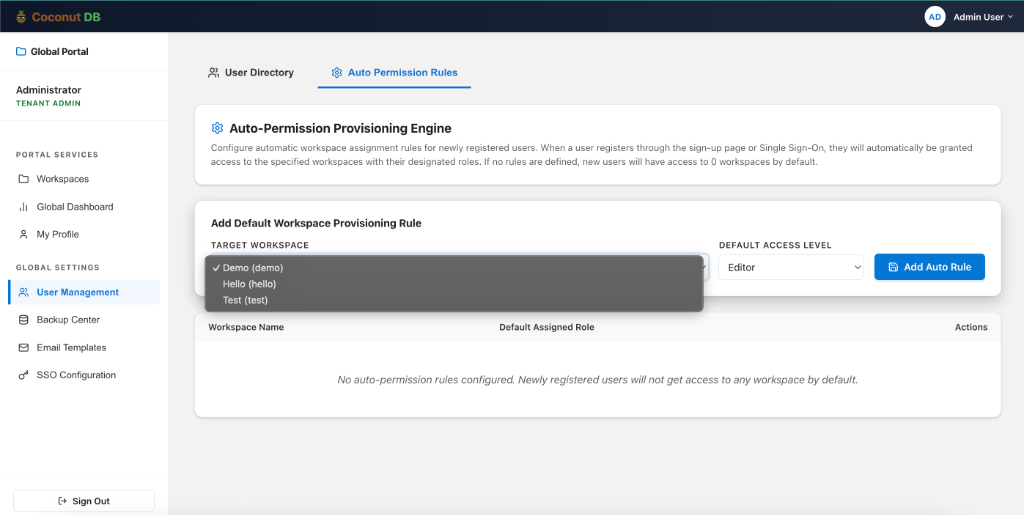
Configuring Auto Permission Rules
Creating a rule requires only two settings:
Target Workspace
Select the workspace that should be assigned automatically (e.g. Demo, Sales, HR, Development).
Default Access Level
Choose the workspace role that every newly registered user should receive. Examples include Workspace Administrator, Data Manager, Editor, Viewer, or any custom workspace role.
After saving the rule, every newly registered user will automatically receive access to the selected workspace with the assigned permissions. No manual invitation is required.
Benefits of Auto Provisioning
- Eliminates repetitive manual user assignments.
- Accelerates employee onboarding.
- Ensures consistent access policies.
- Reduces administrative effort.
- Guarantees that new users immediately receive access to the workspaces required for their role.