AI Studio
Connect LLM providers (OpenAI, Anthropic, Gemini) and embed semantic searches on tables.
Overview
The AI Studio module enables workspace administrators to build, configure, and deploy intelligent AI chatbots without writing complex backend code.
Each chatbot can leverage your workspace's database tables, document vaults, custom APIs, and serverless workflows to provide accurate, context-aware responses. AI Studio combines Large Language Models (LLMs) with Retrieval-Augmented Generation (RAG), allowing chatbots to answer questions using your organization's private knowledge while maintaining role-based security.
Whether you are building an internal support assistant, HR chatbot, sales assistant, procurement advisor, or customer-facing virtual assistant, AI Studio provides all the tools required to create, deploy, and monitor AI agents from a single interface.
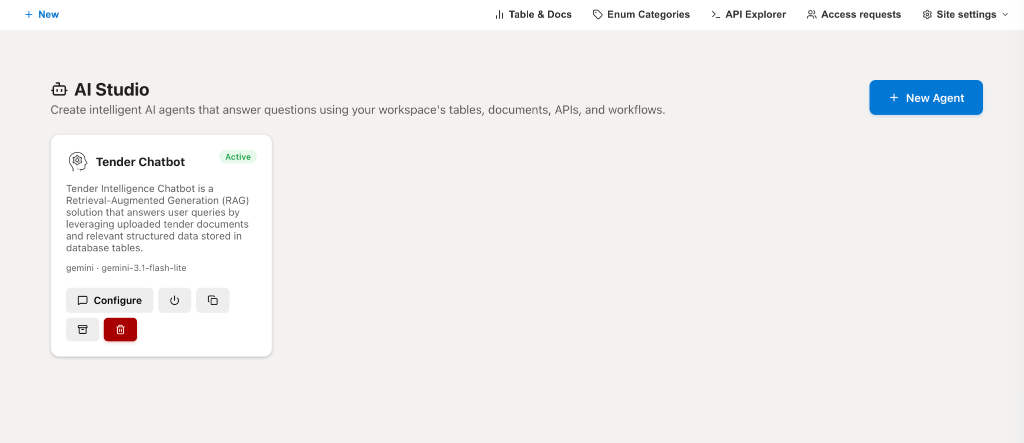
Creating a New Chatbot
Creating a chatbot requires only a few steps.
Select AI Studio from the Site Settings menu and click New Agent.
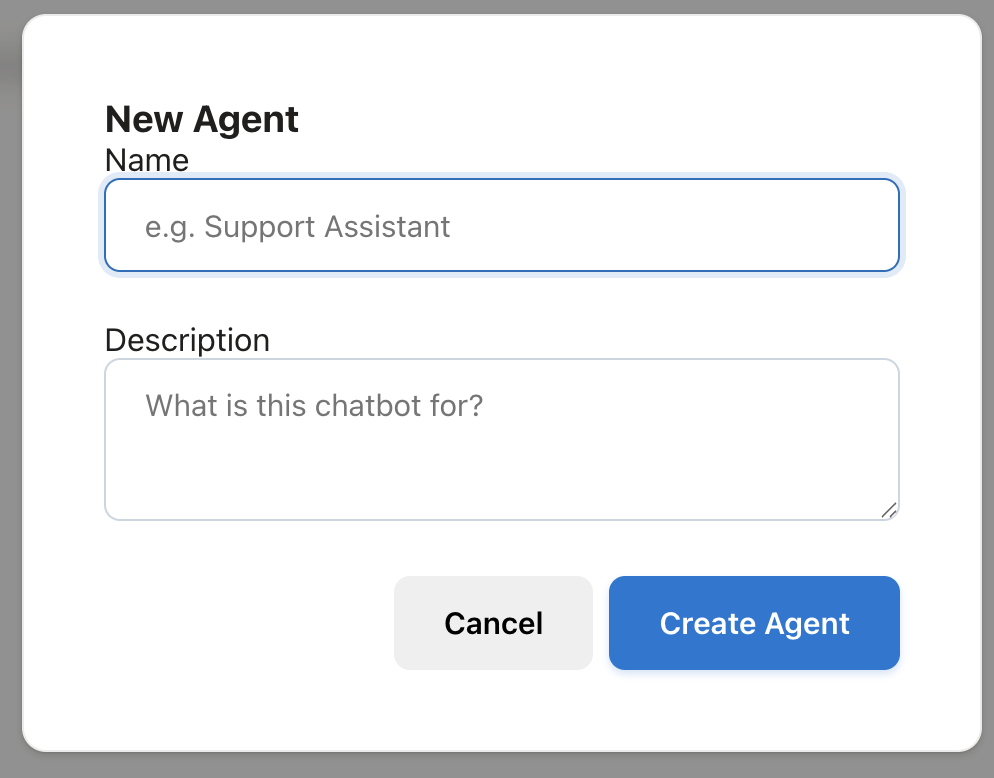
Provide:
- Chatbot Name – A friendly name displayed to users.
- Description – A brief explanation describing the chatbot's purpose.
Once created, the chatbot is immediately available for configuration.
General Configuration
The General section defines how users experience the chatbot.
Administrators can configure:
Chatbot Profile
Configure the chatbot's identity by providing:
- Avatar Image
- Chatbot Name
- Description
These settings determine how the chatbot is presented throughout the application.
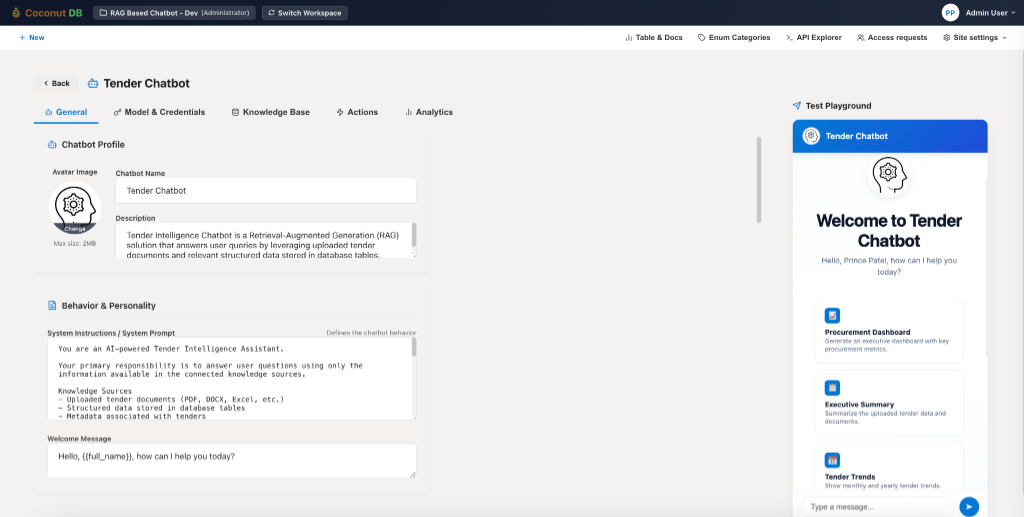
Behavior & Personality
The System Prompt defines the chatbot's personality, behavior, response style, and operating instructions.
Typical instructions include:
- Define the chatbot's role
- Specify acceptable knowledge sources
- Control response formatting
- Restrict unsupported answers
- Define tone and language
Because the system prompt is always sent to the AI model, it becomes the primary behavior controller for the chatbot.
Welcome Message
Configure the greeting displayed whenever a user opens the chatbot.
Variables such as the logged-in user's name can be included.
Example:
`Hello {{full_name}}, how can I help you today?`
This creates a personalized user experience.
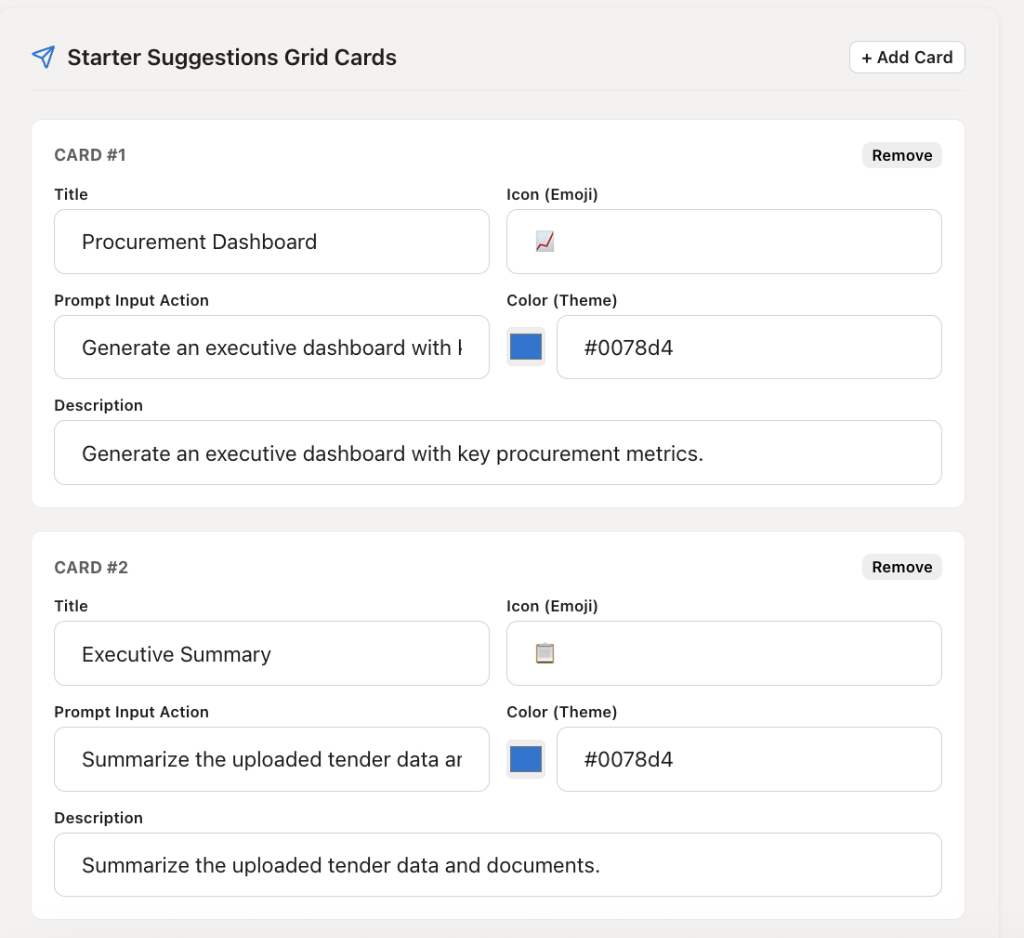
Starter Suggestion Cards
Starter cards provide users with one-click conversation starters.
Each card includes:
- Title
- Icon (Emoji)
- Theme Color
- Prompt to execute
- Short Description
When clicked, the configured prompt is automatically sent to the chatbot, allowing users to begin common conversations without typing.
Examples include:
- Procurement Dashboard
- Executive Summary
- Sales Report
- Generate Invoice
- Employee Directory
These cards improve usability by exposing the chatbot's capabilities immediately.
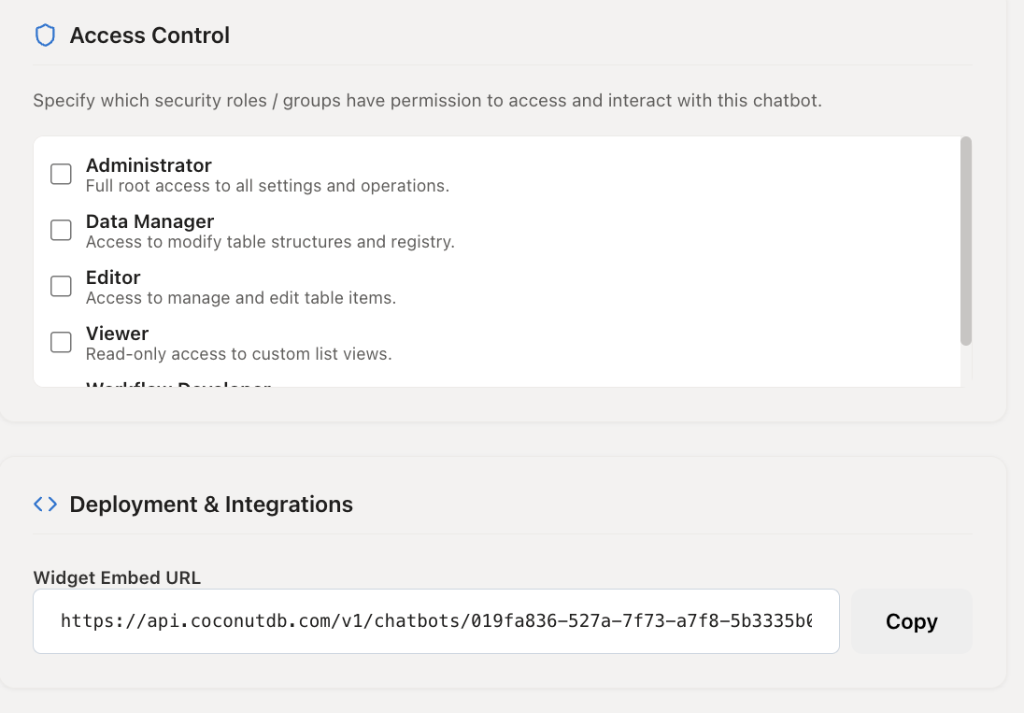
Access Control
AI Studio integrates directly with CoconutDB's Role-Based Access Control (RBAC).
Administrators can specify which workspace roles are permitted to interact with each chatbot.
Examples include:
- Administrator
- Data Manager
- Editor
- Viewer
- Custom Workspace Roles
Only authorized users will be able to access and use the chatbot.
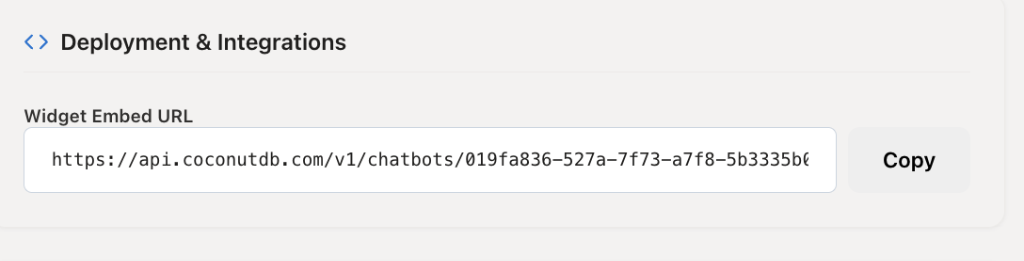
Deployment & Integration
Every chatbot automatically generates a unique Widget Embed URL.
This published URL can be embedded into:
- Internal web portals
- Customer applications
- SharePoint
- CRM systems
- ERP applications
- Corporate websites
User Authentication
To maintain user context and enforce workspace permissions, the embedding application must provide the user's Refresh Token when initializing the chatbot.
The refresh token enables CoconutDB to:
- Identify the current user
- Apply workspace security
- Respect role-based permissions
- Personalize responses
- Maintain conversation history
- Access user-specific data securely
Without a valid refresh token, the chatbot cannot retrieve authenticated workspace information.
Model & Credentials
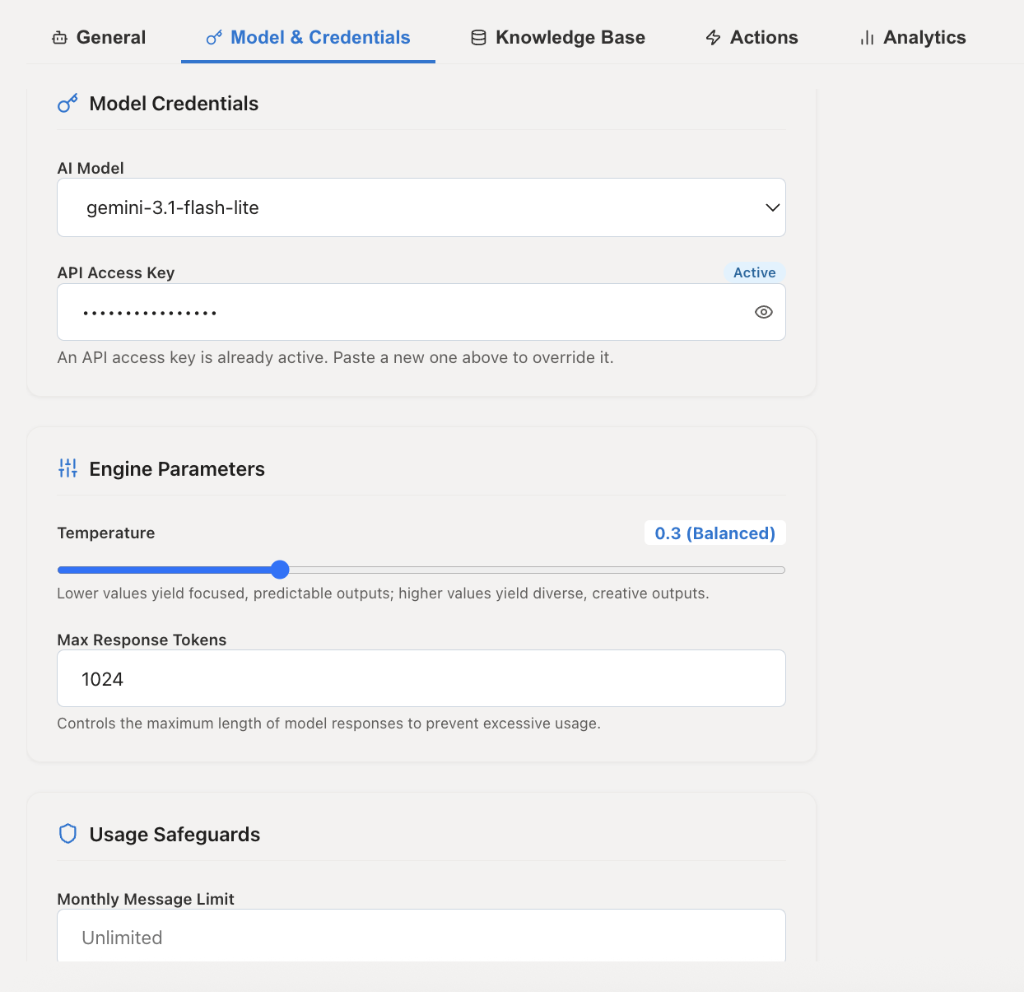
The Model & Credentials section defines which Large Language Model powers the chatbot.
Administrators can configure:
- AI Model
- API Access Key
Supported models depend on the configured provider.
Examples include:
- Gemini
- OpenAI GPT
- Claude
- Azure OpenAI
- Other compatible LLM providers
The API Key is securely stored and used for all AI inference requests made by the chatbot.
Engine Parameters
Administrators can fine-tune model behavior by configuring:
Temperature
Controls creativity versus consistency.
- Lower values produce focused, deterministic responses.
- Higher values generate more diverse and creative responses.
Maximum Response Tokens
Defines the maximum response length that the model is allowed to generate.
Limiting response size helps control response time and AI costs.
Usage Safeguards
To control operational costs, administrators may configure usage limits such as:
- Monthly Message Limit
- Token Consumption Limits
- Request Quotas
These safeguards prevent excessive AI usage while maintaining predictable operating costs.
Knowledge Base
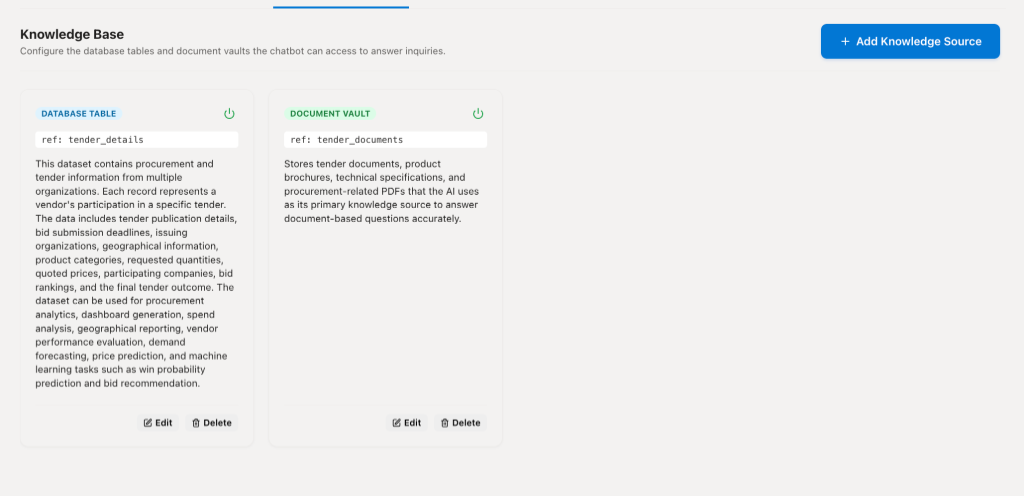
The Knowledge Base is the foundation of Retrieval-Augmented Generation (RAG).
Instead of relying only on the language model's pre-trained knowledge, the chatbot retrieves information from your workspace before generating a response.
AI Studio currently supports two knowledge source types.
Database Tables
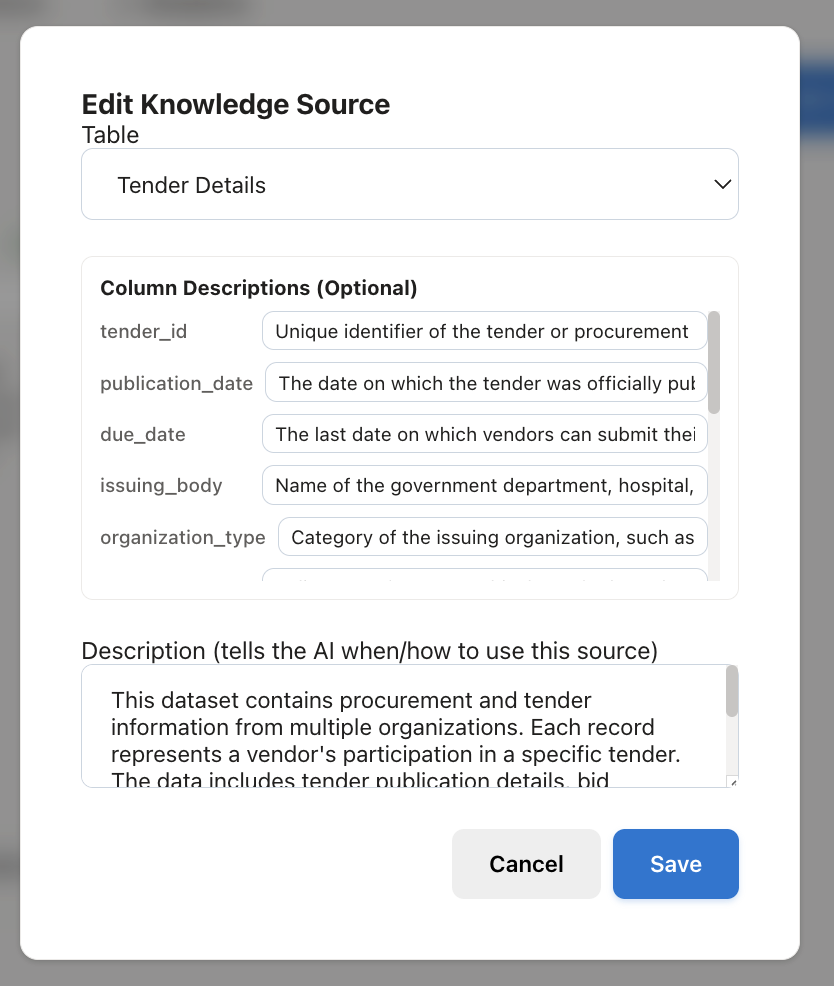
Structured business data stored within CoconutDB tables can be connected directly to the chatbot.
For every table, administrators can configure:
- Table Selection
- Column Descriptions
- AI Usage Description
Column descriptions explain the meaning of each field, allowing the AI to better understand your data model.
Example:
`publication_date` - The official publication date of the tender.
Providing meaningful descriptions significantly improves answer accuracy.
Document Vaults
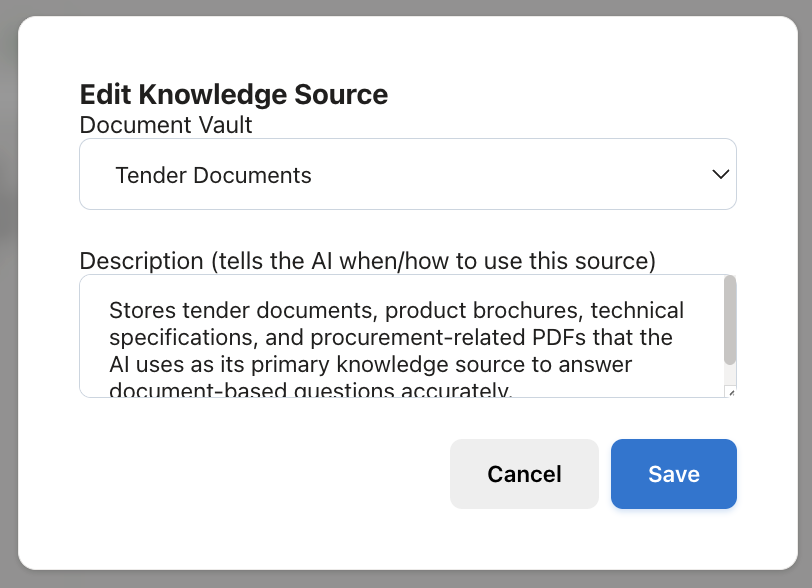
Document Vaults allow the chatbot to search uploaded files such as:
- DOCX
- Excel
- PowerPoint
- Text Documents
Administrators simply select the vault and describe how the AI should use the documents.
Example:
`Use this document repository to answer technical specification and procurement-related questions.`
The AI will automatically retrieve relevant document content during conversations.
AI Actions (Tools)
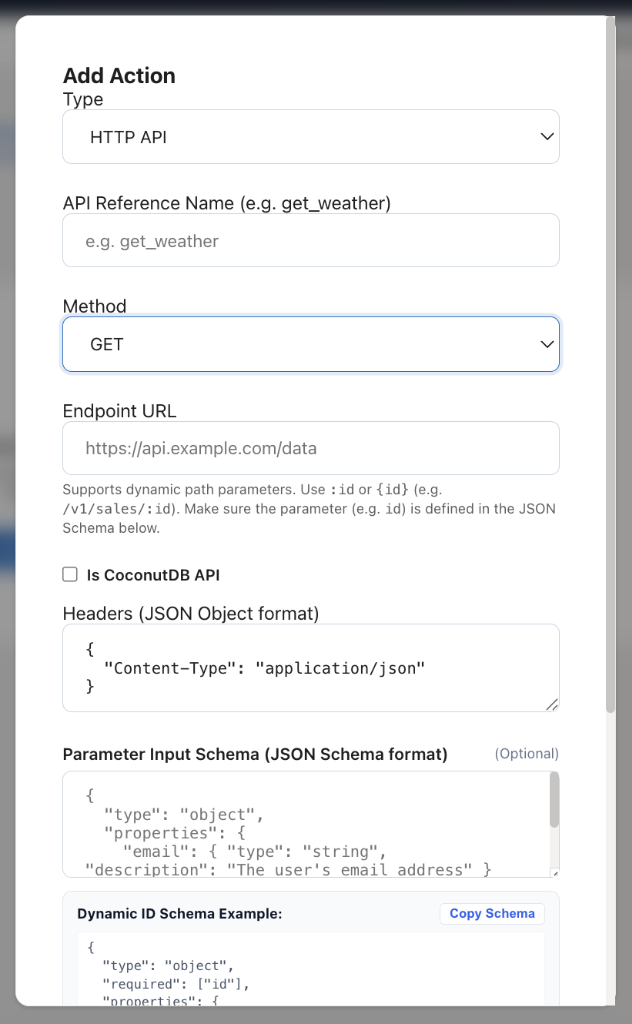
In addition to answering questions, chatbots can perform actions by invoking external APIs.
Actions extend the chatbot beyond question answering into business process automation.
Supported configurations include:
- HTTP Method
- Endpoint URL
- Headers
- Authentication
- JSON Schema
- Dynamic Parameters
Administrators define the expected input schema, allowing the AI to automatically determine when an API should be called and which parameters should be supplied.
Example actions include:
- Create Support Ticket
- Get Weather
- Create Purchase Order
- Submit Leave Request
- Generate Invoice
- Query ERP System
- Trigger CoconutDB Workflow
Because actions are schema-driven, the AI can intelligently invoke APIs during natural conversations.
Analytics
AI Studio provides comprehensive analytics to monitor chatbot usage, performance, and operational costs.
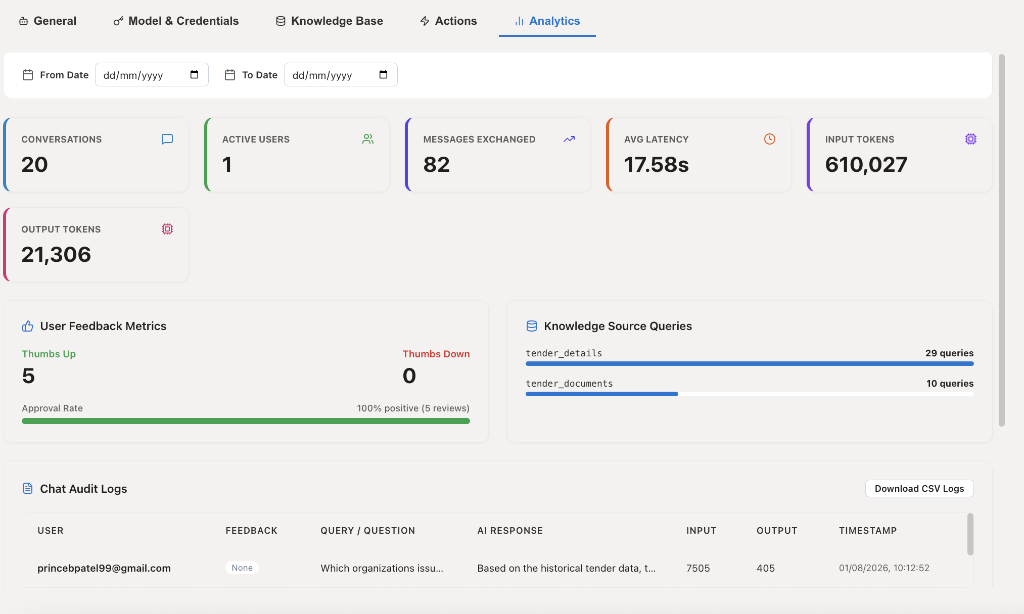
Administrators can filter analytics by date range and review key metrics including:
Conversation Metrics
- Total Conversations
- Active Users
- Messages Exchanged
These metrics help measure chatbot adoption.
Performance Metrics
- Average Response Latency
- Total Input Tokens
- Total Output Tokens
These statistics help optimize response speed and estimate AI costs.
User Feedback
Users can provide positive or negative feedback on chatbot responses.
Analytics displays:
- Thumbs Up
- Thumbs Down
- Overall Approval Rate
This helps continuously improve chatbot quality.
Knowledge Source Usage
AI Studio tracks how frequently each knowledge source is used.
Examples include:
- Database Tables
- Document Vaults
This helps identify which datasets contribute most to AI responses.
Chat Audit Logs
Every conversation is logged for auditing and troubleshooting.
Each record includes:
- User
- Question
- AI Response
- Feedback
- Input Tokens
- Output Tokens
- Timestamp
Audit logs can also be exported for compliance, reporting, or further analysis.
Chatbot Lifecycle
A typical chatbot implementation follows these steps:
- Create a new chatbot by providing its name and description.
- Configure the chatbot profile, system prompt, welcome message, and starter suggestion cards.
- Select the AI model and provide the required API credentials.
- Connect knowledge sources such as database tables and document vaults.
- Add external APIs or workflow actions that the chatbot can execute.
- Assign security roles to control who can access the chatbot.
- Publish the chatbot and integrate it into your application using the generated Widget Embed URL.
- Pass the authenticated user's Refresh Token during initialization so the chatbot can identify the user, enforce workspace permissions, and provide personalized responses.
- Monitor usage, performance, token consumption, and user feedback through the Analytics dashboard to continuously improve the chatbot.