Access Request
Configure approval queues, temporary privilege elevations, and role assignment reviews.
Overview
CoconutDB uses a Role-Based Access Control (RBAC) model to manage workspace security. Instead of assigning permissions directly to individual users, permissions are assigned to roles, and roles are then assigned to workspace members.
This approach simplifies permission management, improves security, and ensures users have access only to the resources required for their responsibilities.
The Workspace Access module consists of three sections:
- Members & Invitations
- Custom Roles
- Permission Matrix
Members & Invitations
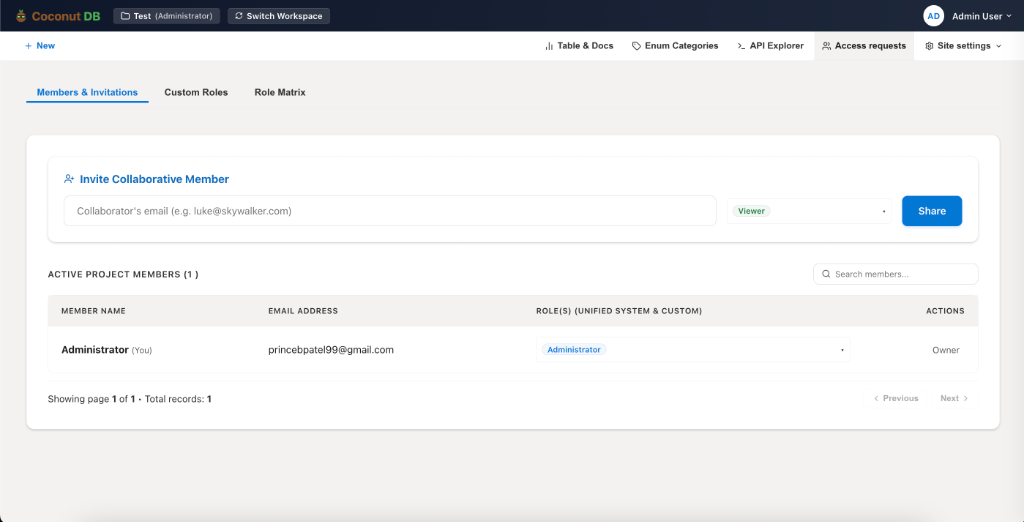
The Members & Invitations page allows Workspace Administrators to invite users, assign roles, and manage access to the workspace.
Only users with appropriate administrative privileges can invite new members or modify user roles.
Inviting Members
To invite a collaborator:
- Enter the user's email address.
- Select the appropriate workspace role.
- Click Share.
The invited user receives an email invitation to join the workspace.
Managing Members
The Active Members section displays all users who currently have access to the workspace.
For each member, administrators can view:
- Display Name
- Email Address
- Assigned Role(s)
- Membership Status
Workspace Administrators can update a member's role at any time.
Custom Roles
Custom Roles allow administrators to create role definitions that match their organization's security and operational requirements.
Instead of assigning broad administrative access, organizations can create specialized roles with only the permissions required for a particular job function.
Examples include:
- Finance Manager
- HR Manager
- QA Engineer
- Sales Representative
- Support Team
- Auditor
This supports the Principle of Least Privilege, ensuring users receive only the permissions necessary to perform their responsibilities.
Creating a Custom Role
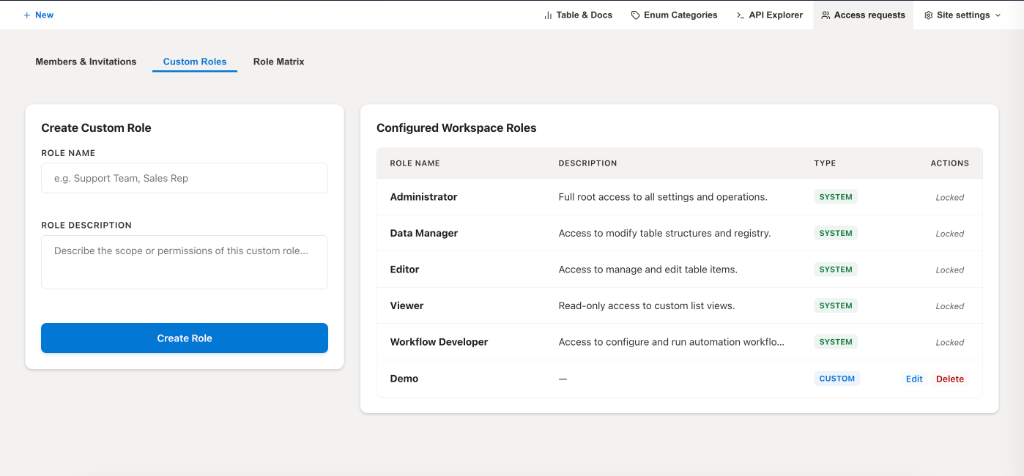
To create a custom role:
- Navigate to Custom Roles.
- Enter a Role Name.
- Provide an optional description.
- Click Create Role.
Once created, the role becomes available within the Permission Matrix for permission assignment.
System Roles
Every workspace includes several built-in system roles.
| Role | Description |
|---|---|
| Administrator | Full administrative control over the workspace. |
| Data Manager | Manages database schemas, tables, and registry configurations. |
| Editor | Creates, updates, and manages business records. |
| Viewer | Read-only access to workspace resources. |
| Workflow Developer | Creates and manages automation workflows. |
System roles are managed by CoconutDB and cannot be modified or deleted.
Custom Roles Overview
Custom Roles are created by Workspace Administrators.
Unlike System Roles, Custom Roles:
- Can be edited.
- Can be deleted.
- Can be assigned custom permissions.
- Can be reused across workspace members.
Permission Matrix
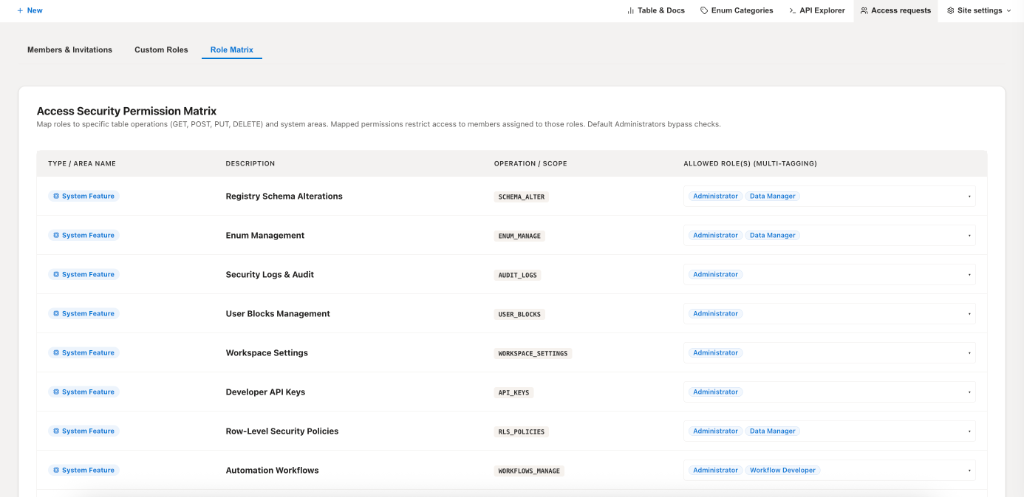
The Permission Matrix is the central authorization engine for the workspace.
It defines which roles are allowed to perform specific operations across workspace features.
Instead of configuring permissions individually for each user, administrators assign permissions to roles, and those permissions automatically apply to every user assigned to the role.
This centralized approach makes permission management simpler, more scalable, and easier to audit.
How It Works
Each permission consists of four components:
| Component | Description |
|---|---|
| Feature | The workspace feature or resource being secured. |
| Permission | The operation that can be performed. |
| Allowed Roles | The roles authorized to perform the operation. |
| Members | Users who inherit the permission through their assigned role. |
For example: Registry Schema Alterations -> Allowed Roles (Administrator, Data Manager) -> Users assigned these roles -> Can modify database schemas.
System Features
The Permission Matrix allows administrators to control access to important workspace features.
Examples include:
| Feature | Description |
|---|---|
| Registry Schema Alterations | Create or modify database schemas and table structures. |
| ENUM Management | Create and manage reusable ENUM categories. |
| Security Logs & Audit | View audit history and security logs. |
| User Blocks Management | Manage blocked users and access restrictions. |
| Workspace Settings | Configure workspace-level settings. |
| Developer API Keys | Create and manage API keys. |
| Row-Level Security Policies | Configure RLS rules and security policies. |
| Automation Workflows | Create and manage workflow automation. |
Assigning Permissions
Each permission can be assigned to one or more roles. Multiple roles may share the same permission.
For example:
| Permission | Allowed Roles |
|---|---|
| Manage Tables | Administrator, Data Manager |
| View Audit Logs | Administrator |
| Manage Workflows | Administrator, Workflow Developer |
| Manage ENUM Categories | Administrator, Data Manager |
This flexibility allows organizations to build permission models that align with their internal processes.
Benefits of the Permission Matrix
Using a centralized Permission Matrix provides several advantages:
- Centralized permission management.
- Consistent access control across the workspace.
- Easy assignment of permissions through roles.
- Reduced administrative overhead.
- Simplified onboarding and offboarding.
- Improved security through the Principle of Least Privilege.
- Better visibility into who can access specific features.
- Enhanced support for internal governance and audit requirements.